
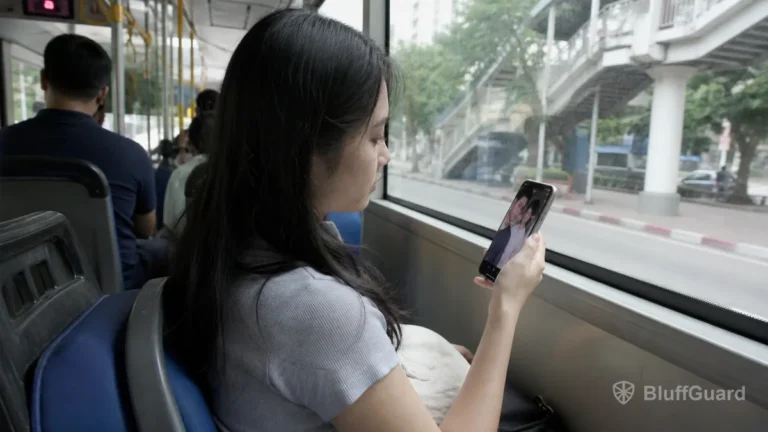
Short drama episodes are brief, but watching dozens in one session can still use a significant amount of mobile data. Autoplay, high-definition video, advertising and background activity all contribute to the total.
The exact amount depends on the app, video quality, network and length of each episode. Instead of relying on one universal estimate, use your phone’s data meter to measure the service on your own device and adjust the settings that matter most.
Start with the app’s video-quality setting
Many video apps offer Auto, Data Saver, Standard, HD or similar quality choices. Auto quality may increase resolution when the connection is strong, which can use more data than expected.
Open the app’s Settings, Playback or Video Quality area and look for separate controls for mobile data and Wi-Fi. If available:
- choose Data Saver or Standard on mobile data;
- reserve HD for Wi-Fi;
- disable automatic quality increases;
- test whether subtitles remain readable at the lower setting.
A lower resolution usually makes less difference on a small phone screen than on a television. If the app does not expose quality controls, your phone’s system-level data settings become more important.
Understand the effect of autoplay
Short drama apps are designed to move quickly from one episode to the next. Autoplay can continue loading video even when you intended to stop after one episode.
Check for settings named Autoplay, Continuous Play, Preload Next Episode or Smart Preloading. Turning them off can reduce both data use and unplanned viewing.
When no control exists, exit the player instead of leaving it paused in the foreground. Watch for picture-in-picture playback that continues after you leave the app.
Use Wi-Fi for downloads when supported
Some short drama apps allow offline downloads, often as a VIP benefit. Downloading a group of episodes on trusted Wi-Fi can reduce mobile use later.
Before downloading:
- enable a Wi-Fi-only download option;
- choose a reasonable download quality;
- check available storage;
- confirm how long downloads remain available;
- verify whether playback requires a periodic connection or active subscription.
Downloaded content is normally protected inside the app and cannot be treated like a regular video file. If the plan expires or the title leaves the catalogue, access may change.
Monitor data use on Android
Android menu names vary by manufacturer, but data use normally appears under Network & Internet, Connections or SIM settings.
Find the short drama app in the mobile-data usage list and review:
- foreground data used while watching;
- background data used when the app is not visible;
- the current billing-cycle dates;
- any data warning or limit.
If the app consumes background data unnecessarily, restrict background mobile use. Be aware that this can delay notifications or downloads.
Android’s Data Saver mode can also limit background activity. You can allow exceptions for essential apps while leaving entertainment services restricted.
Monitor data use on iPhone
On iPhone, open Settings and Cellular or Mobile Service. Scroll to the app list to see cellular usage and turn mobile access off for a specific app if needed.
The counter may cover a long period unless it has been reset. Reset statistics at the beginning of a test period, watch a known number of episodes and check the difference afterward.
Low Data Mode can reduce background network use. Its effect depends on the app, so continue to watch the system meter rather than assuming every video service will lower quality automatically.
Remember that ads also use data
An ad-supported service downloads both the drama and the advertising. Video ads, interactive ads and external landing pages can add to the total.
Rewarded ads may be worthwhile when they replace direct payment, but they are not data-free. If your mobile plan is limited, compare the data and time cost of repeated ads with viewing on Wi-Fi.
Avoid tapping an ad unless you intend to visit its destination. External pages and app-store previews can consume additional data.
Prevent surprise background activity
Short drama apps may refresh recommendations, load artwork, send notifications or prepare the next episode. Useful controls include:
- background data restriction;
- Wi-Fi-only downloads;
- disabled automatic updates over mobile data;
- reduced notification categories;
- closed picture-in-picture playback;
- removal of downloaded episodes after finishing them.
Do not use aggressive battery or data restrictions if they cause purchases, downloads or account synchronisation to fail. Change one setting at a time and test the result.
Measure your real usage
A short test gives a more accurate estimate than a generic online calculator:
- Record the app’s current mobile-data total.
- Confirm the selected video quality.
- Watch ten normal episodes without switching apps.
- Record the new total.
- Divide the difference by ten for an approximate per-episode average.
- Repeat after changing quality or autoplay settings.
Do not include large app updates or downloads in the same test. Ads can also make two sessions different, so treat the result as an estimate rather than a fixed promise.
A practical low-data setup
For a viewer with a limited plan:
- select Data Saver or Standard quality;
- disable autoplay and preloading;
- download only on trusted Wi-Fi;
- restrict background mobile data;
- turn off automatic app updates over cellular;
- set a system data warning;
- review usage weekly.
Short episodes make viewing convenient, but the total session matters more than the length of one chapter. Combining app-level playback controls with the phone’s data meter gives you the clearest view of what short dramas actually use.
Related guides
- Can You Watch Short Dramas Offline?
- How to Fix Playback Problems in Short Drama Apps
- How Rewarded Ads Work in Short Drama Apps
Sources and further reading
- Google Android Help, mobile-data and Data Saver controls.
- Apple Support, cellular-data and Low Data Mode settings.
- Official playback and download documentation for the short drama app being used.
