
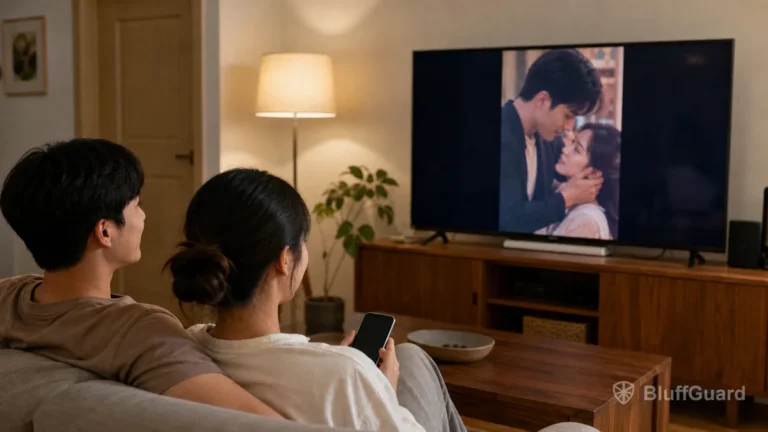
Short dramas are usually filmed vertically for a phone, but some viewers prefer a larger screen. Depending on the app, you may be able to use Chromecast, Google Cast, AirPlay, a smart-TV app, a web player or basic screen mirroring.
Support varies by service, device, country and plan. Confirm the current app’s features before subscribing specifically for television viewing.
Start with the app’s own Cast or AirPlay button
Native casting usually provides the most reliable playback. Open an episode and look for:
- a Cast rectangle with signal lines;
- an AirPlay screen with a triangle;
- Watch on TV;
- Connected Devices;
- a television icon in the player.
Connect the phone and television or streaming device to the same Wi-Fi network. Tap the control and choose the target device.
With native casting, the television may stream the episode directly while the phone acts as a remote. This normally produces better quality and fewer notification interruptions than mirroring the entire phone.
Use Chromecast or Google Cast
If the app supports Google Cast:
- Turn on the compatible TV or streaming device.
- Confirm both devices use the same Wi-Fi network.
- Open the short drama app and start an episode.
- Tap Cast.
- Select the television.
- Check subtitles, volume and next-episode controls.
If no device appears, restart Wi-Fi on the phone, confirm local-network permissions and check whether guest or isolated Wi-Fi prevents devices from seeing one another.
Do not assume screen mirroring support means the app supports native Cast.
Use AirPlay from iPhone or iPad
For an app with AirPlay support:
- Connect the Apple device and compatible television to the same network.
- Open the episode.
- Tap AirPlay in the player or sharing controls.
- Select the television or Apple TV.
- Enter the displayed code if prompted.
If the video remains on the phone while only audio transfers, the app may not support full AirPlay playback. Try the official help page or web player rather than repeatedly changing system settings.
Screen mirroring as a fallback
Screen mirroring copies the phone display to the television. It can work when the app has no native casting control, but there are limitations:
- notifications may appear on the television;
- the phone must remain active;
- vertical video leaves space on both sides;
- quality and frame rate may be lower;
- protected video may show a black screen;
- battery use can increase.
Enable Do Not Disturb and hide sensitive notifications before mirroring. Never enter a password or payment detail while the screen is visible to others.
Use an official web or TV app
Some services offer a browser player or television app. Sign in through the developer’s official domain or verified store listing.
Before entering credentials, confirm the domain carefully. Search results can include unofficial streaming pages using a drama’s title.
A television app may have a separate catalogue or fewer account features than the mobile version. Test whether purchases, subscriptions and viewing history synchronise.
Why vertical video has empty side space
A 9:16 phone video is much narrower than a 16:9 television. Showing the complete picture creates bars or background space on both sides. Filling the entire TV would require cropping the top and bottom, which can remove faces, subtitles or story details.
Choose Fit rather than Zoom when the television offers picture controls. The empty space is usually the correct presentation.
Fix subtitle problems on TV
If subtitles appear on the phone but not the television:
- choose the subtitle track before connecting;
- disconnect and reconnect after changing language;
- test native casting instead of mirroring, or the reverse;
- update both the app and streaming device;
- check whether the title uses burned-in or selectable subtitles;
- try another episode.
Some casting methods send only the video stream, while others mirror the complete player interface. Language support can therefore differ.
Fix connection or playback problems
Work through one change at a time:
- Confirm the same Wi-Fi network.
- Restart the app.
- Restart the television or streaming device.
- Check local-network permission on the phone.
- Disable VPN temporarily only if you understand the privacy effect and the app’s terms.
- Update the app and device software.
- Test another title and another video app.
If only one short drama app fails, collect the device model, app version and episode before contacting official support.
TV viewing checklist
- The app officially supports my casting method.
- Phone and TV use the same trusted network.
- Notifications are hidden before mirroring.
- Vertical video is set to Fit, not aggressively cropped.
- Subtitles and audio work on the television.
- Purchases and history sync with the correct account.
- I tested more than one episode before paying for a plan.
Casting can make short dramas easier to share, but the format remains designed around a vertical mobile screen. Use native Cast, AirPlay or an official TV experience when available, and treat mirroring as a fallback rather than guaranteed support.
Related guides
- Short Drama Subtitles and Dubbing
- Can You Watch Short Dramas Offline?
- How to Fix Playback Problems in Short Drama Apps
Sources and further reading
- Google Chromecast Help and Apple AirPlay Support.
- Official device-support documentation for the selected short drama app.
- Current smart-TV or web-player listings from the verified developer.
